
Haruno on Windows
What the Windows app does, and how to install it, sign in, keep it updated, turn on the Advanced view and run scheduled tasks.
What the Windows app does
The Windows app has the same books as Haruno for Mac: the Portfolio, company pages, mapping, close, reconciliation, findings and questions for management, the investor report, the close lock and the report exports. Beside them it has a chat assistant that works with the files in a folder you choose and with the books. Where the screens differ from the Mac's, see Differences from Haruno for Mac.
| Area | On Windows |
|---|---|
| Portfolio | Your companies as cards or a table, each with its own page. The first row of the navigation, with no shortcut key. |
| Chat (Ctrl+1) | Works on the project folder's files and, once the Portfolio holds a company, reads the books; asks with an approval card when a step needs it. |
| Projects | A name plus a folder, each with its own chats; switch, create or remove one from the menu bar. Remove project… keeps its chats and files. |
| Files (Ctrl+2) | The project folder. A Haruno column marks the files Haruno read, edited or created this session. Delete is permanent: nothing goes to the Recycle Bin. |
| Documents | Reads documents, spreadsheets, PDFs and images. Office files creates and edits Excel, Word and PowerPoint files without Microsoft Office. It turns on by itself when Word, Excel or PowerPoint is installed; otherwise turn it on in Settings ▸ Connectors. |
| History (Ctrl+3) | Reopen, rename, pin, export or delete past chats. |
| Scheduled, Hooks | Run a prompt on a timetable or when an event arrives. See below. |
| Source control (Ctrl+G) | Only when the project folder is a Git repository. |
| Help ▸ User Guide | A built-in guide that works offline. |
Finance work on Windows
The assistant can read a QuickBooks export or a schedule in the project folder, answer questions about it and draft a memo, a spreadsheet or a PDF. There is no mapping, ledger, check or lock behind a figure it reads from such a file, so that figure has not been through a close. Once the Portfolio holds a company, the assistant also reads the books and says which month they run through. For figures you report to a company, its lenders or its investors, close the month and use the books.
Month-end work follows the same steps as on the Mac: see Your first close. To share a closed month, export its reports. What Haruno knows when you ask covers how the chat reads the books; QuickBooks Online connects as it does on the Mac.
What leaves your PC
As on the Mac, what you type, what you attach and what the assistant reads go through Inferara's hosted service to the model provider, and so do the questions for management Haruno drafts after a close. Selecting a file in Files also sends an excerpt for its Summary. See Data handling and security.
System requirements
You need an up-to-date Windows 10 or Windows 11 PC, an internet connection and a Haruno account. Setup installs Haruno for your Windows user only and needs no administrator rights.
| Requirement | Details |
|---|---|
| Processor | x64 (Intel or AMD) or ARM64; Setup picks the right version. No 32-bit Windows. |
| Internet | While Setup runs, and to sign in, chat, update, sync QuickBooks and use connectors. |
| Microsoft Edge WebView2 Runtime | Usually already on the PC; if not, Setup installs it. |
| Disk space | The app, a download of several hundred megabytes, and each connector you turn on. |
| A Haruno account | The same account and allowance as on the Mac; up to five computers, Mac or Windows, at a time. |
The Windows app is not bought separately; see Pricing.
Download
Download Setup from haruno.ai/download/windows. The file, Haruno-Setup.exe, is signed by Inferara K.K. and carries no app: it downloads the current version while it installs. The account dashboard's Get the app card offers only Download for macOS.
Install
Setup asks one question, whether to create a desktop shortcut. Keep the PC online until it finishes.
- Open Haruno-Setup.exe from your Downloads folder.
If Windows shows Windows protected your PC, click More info, check that Publisher names Inferara K.K., then click Run anyway. If it names anyone else, click Don't run and download Setup again from haruno.ai/download/windows.
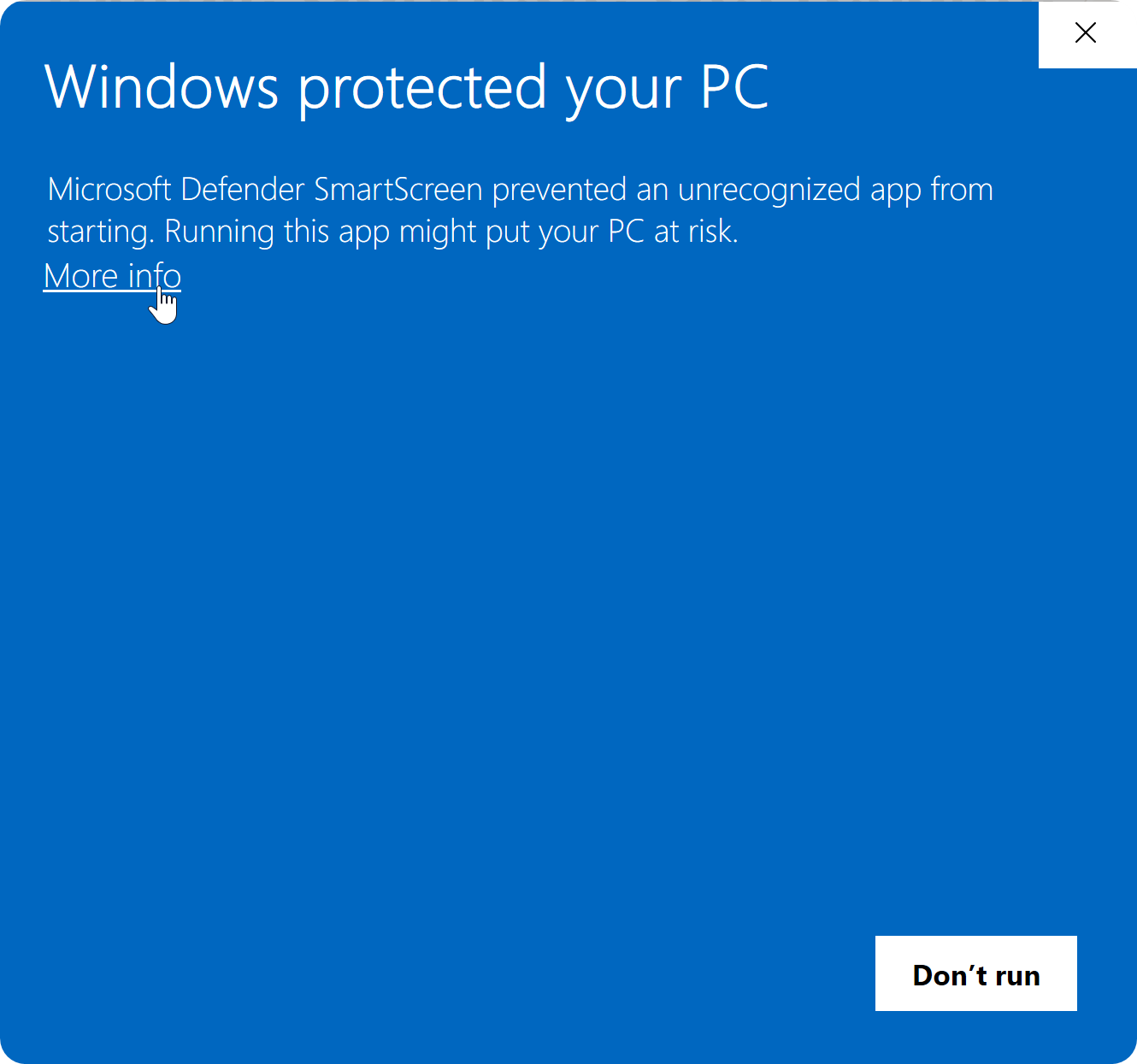
- On Select Additional Tasks, keep or clear Create a desktop shortcut, then click Next.
Haruno is in the Start menu either way.
- On Ready to Install, click Install.
- Wait while Setup downloads and installs Haruno.
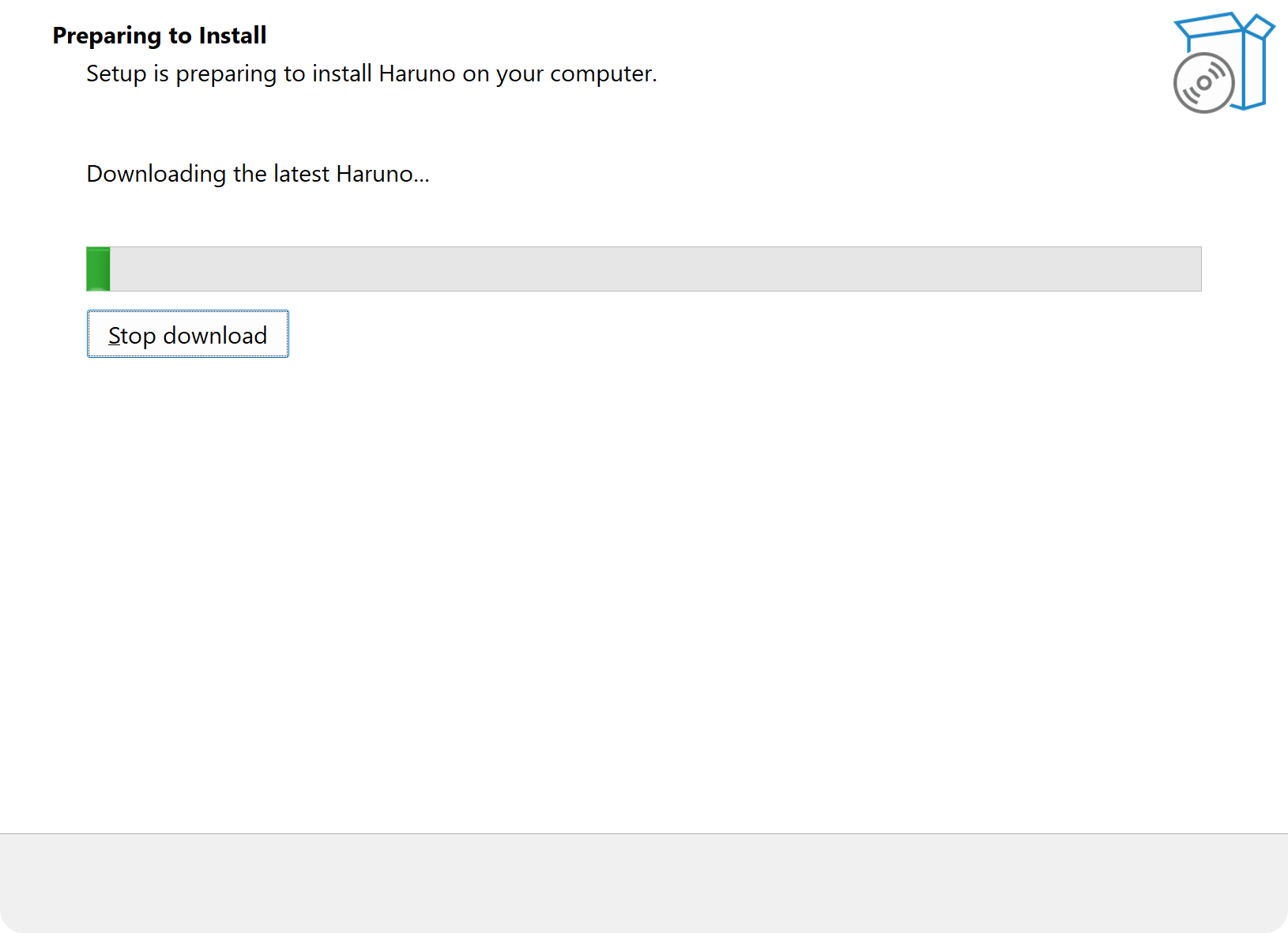
The page reads Downloading the latest Haruno....
- On the last page, leave Launch Haruno ticked and click Finish.
Haruno opens on Welcome to Haruno. Continue with Sign in.
What Setup does
- It installs the current Stable version into your user profile. There is no offline or all-users installer.
- It checks that the download is exactly the file Haruno published, and stops if it is not.
- It closes Haruno without asking when you click Install, even in the middle of a reply, a close or a scheduled run. Quit Haruno first.
- Unlike on the Mac, the secure sandbox comes with the app.
Messages from Setup and what to do
| What Setup says | What to do |
|---|---|
| Haruno is not being offered for installation right now. Ask your Haruno administrator to choose a version, then run Setup again. | Write to info@inferara.com. |
| Haruno could not get the list of available versions: the server answered with an error. This is usually temporary — try again in a few minutes, or ask your Haruno administrator. | Run Setup again in a few minutes. |
| Haruno could not get the list of available versions. Check your connection, or ask your Haruno administrator whether a version has been chosen. | Check the internet connection, proxy or firewall. |
| No build for this architecture (…). | Write to info@inferara.com with the processor type in brackets. |
| Download failed or the file was corrupt (hash mismatch). | Run Setup again. |
| Haruno is in use and could not be replaced. Close Haruno and run Setup again. | Quit Haruno, including its notification-area icon ▸ Exit. |
| Haruno could not install the Microsoft Edge WebView2 runtime, which this app needs in order to display anything. Install "Microsoft Edge WebView2 Runtime" and run Setup again. | Install it from Microsoft, or ask your IT team. |
Sign in
Signing in is the first of the two setup screens. You sign in and approve this PC in your browser, within five minutes, and the app signs itself in. It never sees your password.
- On Welcome to Haruno, click Sign in with browser.
- Sign in to your Haruno account in the browser, if it asks.
Use Continue with Google; the page offers no other way to sign in. If it reads This account needs help connecting to Google. Contact support to restore access., write to info@inferara.com.
- On Authorize this device?, check that Device shows this PC's name, then click Authorize.
- Go back to Haruno and click Continue.
The screen reads Signed in as followed by your email address. Your license is in Settings ▸ General ▸ Account; see Check your account and license.
Sign in later, sign out or switch accounts
Sign in from Settings (Ctrl+,) ▸ General ▸ Account ▸ Sign in with browser if you skipped setup, the status line reads Not signed in — open Settings or the chat shows Sign in to start chatting. There the card reads Waiting for the browser… and the button stays grayed out until you approve, click Cancel sign-in or five minutes pass; if sign-in does not complete it reads Sign-in didn't complete. Try again.
- Sign out, in the same card, removes this PC from your account's devices; chats, projects, books and settings stay. To switch accounts, sign out here and in the account dashboard in your browser, then sign in with the other account.
- Haruno keeps its sign-in in Windows Credential Manager, never your password. A PC unused for 90 days has to sign in again.
- Signing in copies nothing between computers.
The five-computer limit and revoking a device work as on the Mac; see Signing in on more than one computer. The browser's own messages are in Troubleshooting.
Sign-in messages and what to do
| What you see | What to do |
|---|---|
| Sign-in didn't complete. Try again. | You cancelled, nothing was approved within five minutes (for example after Deny or the device limit), or no browser opened. Check that Windows has a default browser, then try again. |
| This account needs help connecting to Google. Contact support to restore access. | The address belongs to an account set up with a password, which Continue with Google does not link to. Write to info@inferara.com. |
Connect QuickBooks and open a folder
After sign-in, Continue opens Connect QuickBooks, the second and last setup screen. The setup asks for no project and no folder.
- Under Connect QuickBooks, click Connect to QuickBooks for each company you want to connect, and approve it in your browser.
The button is Intuit's own and appears only if you may add companies; otherwise the screen reads An administrator of … adds QuickBooks companies. Manage on dashboard opens the dashboard, where companies are renamed or disconnected.
- Click Finish.
Finish works even if you connected none, and Back returns to sign-in. Connecting adds nothing to the Portfolio: you add a company with Add company ▸ From QuickBooks.
- Open the folder Haruno works in with File ▸ Open Folder… (Ctrl+O), or create a project from the project menu ▸ New project….
Until you do, the menu bar project reads No project and a first message answers Set a working directory before sending. Pick the folder the agent will work in via File → Open Folder. Haruno refuses a folder that is too broad, such as a whole drive, your user folder, AppData, Windows or Program Files, or one that holds the books. For a very large folder it warns That's a very large folder, since each chat can then take a minute or more to get ready; Use it anyway keeps it.
Skip for now ends the setup at any step, after you confirm. Sign in later from Settings, add QuickBooks companies with Add company ▸ From QuickBooks, and choose a folder with File ▸ Open Folder… (Ctrl+O). Where the skip message says Settings ▸ Account and license, open the Account card in Settings ▸ General.
The setup screen's Display language menu, and later Settings ▸ General ▸ Language, switch between System default, English, 日本語, 繁體中文 and العربية. A change applies at once, and Arabic runs the app right to left.
Check your account and license
The status line at the bottom of the window reads Ready when you can chat, and checks again about once a minute. The License line in Settings ▸ General ▸ Account says it in words (Active., Unpaid., Cannot reach server. and others) and checks again each time you open Settings.
| Status line | What to do |
|---|---|
| No connection — cannot reach Haruno | Check the internet connection, proxy or firewall. |
| Server temporarily unavailable | Try again in a few minutes. |
| Not signed in — open Settings | Sign in from Settings. Shown after Sign out or a revoke. |
| Sign-in rejected | Sign in again from Settings. |
| License unpaid | The account is unpaid or switched off. Write to info@inferara.com. |
| Budget exhausted | See below. |
Budget exhausted
The account has no allowance to spend right now, and a chat answers Budget exhausted. See available plans at https://haruno.ai/#pricing. There is no plan to pick on the website: our team sets up plans. Either the account is new and has no plan yet, or the allowance is used up until your limits reset (see Usage on the account dashboard); to get more sooner, write to info@inferara.com. After redeeming a promo code, open Settings to check the License line again. See Usage allowance.
Near a limit, a banner reads You've used N% of your 5-hour limit. (or weekly, or monthly). Its Upgrade to … or Buy credits button buys nothing today: plans and credit are not sold in the app or on the account dashboard.
A reply that reaches the account's limit ends with one card, Usage limit reached. To continue now, add credit or change your plan in the Haruno dashboard., and an Open dashboard button; if the service says when the limit lifts, the card adds that it resets in about N min or N h. Payment required. Update your billing in the Haruno dashboard. means the plan is not active. Wait for the reset, or write to info@inferara.com.
Updates
The Windows app checks for a newer version about a minute after it starts and every hour after that, downloads it in the background and installs it the next time Haruno restarts. To restart now, click Restart to update at the bottom of the navigation.
Check for an update now
Click About (the circled i), then Check for updates. Click the version shown there to copy it for support. If About offers Open download page, Haruno cannot install the update itself on this PC: click it to download the new version in your browser.
Automatic updates
In Settings (Ctrl+,) ▸ General, Automatic updates is on by default. Turned off, Haruno stops checking by itself, and About ▸ Check for updates still works.
Settings has no update channel to choose: Haruno updates from Stable. A PC that was set to Beta earlier keeps following Beta.
Normal and Advanced view on Windows
Settings (Ctrl+,) ▸ General ▸ Advanced view, the last item, shows more settings and controls, and the details of each step. It is off on a fresh install. The assistant is the same in both views, with Haruno's finance instructions. Haruno for Mac has the same switch; see Normal and Advanced view.
| What changes | Normal view | Advanced view |
|---|---|---|
| Chat controls | Always Auto permission mode; approval cards when needed. | Agent/Ask switch and permission modes. |
| Settings tabs | General, Connectors, Shortcuts. | Adds Advanced. |
| Secure sandbox | Always on. | On by default; can be turned off unless a connector needs it. |
| Connector controls | Defaults only. | Per-tool On, Off or Confirm; custom MCP servers; hook rules. |
| Use memory | Not shown; the saved setting, on by default, still applies. | In Settings ▸ General. |
| Conversation | Step details, failed steps and reasoning are left out. | Shown. |
The sandbox lets a chat see only the project folder, the books (read-only, apart from each company's mapping) and Haruno's own data, with general internet access blocked; if it cannot start, the chat is blocked rather than run without it. See Approvals and permissions.
Scheduled tasks and hooks
Scheduled tasks run a prompt on a timetable; hooks run one when an event arrives. Nobody is watching, so an action set to Confirm, such as sending an email, is refused and the run reports it. Nothing is held for later approval, as it is on the Mac. A QuickBooks company's ⋯ menu has Sync schedule…: a switch, how often (Every day, Monday to Friday, Every week, Every month or Every quarter, the last three on a day you choose) and a time (06:00 by default) that fetch its months while Haruno is open; a time missed while it was closed runs once when it is next open and online. It is not a scheduled task, and it never closes or reviews a month. The sheet also has Email me a summary after scheduled syncs.
- Open Scheduled and click Create task.
- Fill in Name and Prompt.
Leave Folder (optional) empty and Haruno creates one in
Haruno\Scheduled tasksin your user folder. - Under How often, choose Every N minutes, Every N hours, Daily, Weekly or Monthly, then click Save.
Every N minutes offers 1, 5, 10, 15, 20 or 30; Every N hours offers 1, 2, 3, 4, 6, 8 or 12. A saved schedule none of these can express shows as Custom, is kept as saved and cannot be edited; pick one of these to replace it.
- Tasks run only while Haruno is open. A missed run shows as Skipped (app closed) and is not made up.
- With a task turned on, closing the window keeps Haruno in the notification area. Launch at startup in Settings ▸ General starts it there when you sign in to Windows.
- A run due while the previous one is still going shows as Skipped (already running). Transcripts are in Run history.
- Setting a tool to On, so that it runs without asking, needs the Advanced view. Do that only for a step you are content to have happen with nobody checking it.
Hooks react to events from Gmail, Outlook Mail, Google Calendar, Outlook Calendar, Telegram and Discord. Create one with New hook; choosing its events, in Settings ▸ Connectors, needs the Advanced view. Allow powerful tools lets a hook run commands and change files, and anyone who can message the chat can trigger it: leave it off for a chat people outside your firm can write to. For the Mac, see Scheduled tasks.
Differences from Haruno for Mac
Both apps use the same account, sign-in and AI allowance, and both run the month-end close with the same steps. The table lists where Windows differs.
| Topic | Haruno for Mac | Haruno on Windows |
|---|---|---|
| First launch | Opens on the Portfolio. Chat works in Haruno's own Workspace folder until you open another. | Opens on Chat, with No project in the menu bar. Open a folder (File ▸ Open Folder…) or create a project before your first message. |
| Navigation | Portfolio ⌘1, Chat ⌘2, Files ⌘3, History ⌘4, Scheduled ⌘5 | Portfolio (no shortcut), Chat Ctrl+1, Files Ctrl+2, History Ctrl+3, Hooks, Scheduled |
| Git | A Git page (⌘6), in the Advanced view, when the folder is a Git repository. | A Source control page (Ctrl+G), in either view, when the project folder is a Git repository. |
| Menus | A Books menu. | No Books menu. Add company and Close month… are on the Portfolio toolbar; Review Mapping…, Reopen Month… and Close month… are in a company page's header; Upload files is in its Add data area. |
| Portfolio toolbar | Export Portfolio Report…, Sort, Cards or Table, Close month…, Add company. | The same, plus Sync all (when a company is linked to QuickBooks) and Books (the gear). |
| Opening a company | Click a card; double-click a table row, press Return or right-click ▸ Open company. | Click a card or a table row. There is no right-click menu: a company's ⋯ menu has Archive company. |
| Add company | From QuickBooks (the sheet opens on it), Add manually, and Import existing books… on an empty Portfolio. | Fill in by hand (the sheet opens on it) and From QuickBooks. No import of existing books. |
| Adding a QuickBooks company | From QuickBooks: pick one company and click Add to this computer. | From QuickBooks: tick one or more companies and click Add (Add N companies when several are ticked). |
| Adding and removing files | .xlsx, .csv and .pdf. A Data added to sheet lists the results; a PDF that is not a reconciliation report reads Copied · Not used. Remove from Company moves Haruno's copy to the Trash. | Also one ZIP, a 弥生会計 trial balance. The results are under Import results, with no sheet; a PDF that is not a reconciliation report reads Copied · Couldn't read. Remove from Company does not use the Recycle Bin. |
| Deleting a company's data | Delete Company Data… beside an archived company in Archived (N), then Delete Data. | Not offered: a company can be archived and restored, not deleted. The tick box on Remove from portfolio that reads “Also remove this company's books from this computer” only archives them. |
| QuickBooks | Disconnect and Remove are on the dashboard. A Sync QuickBooks task in Scheduled syncs every company. | A company's ⋯ menu has Disconnect from QuickBooks, Remove from portfolio and Sync schedule… (runs while Haruno is open). |
| Ask Haruno buttons | A second press replaces the earlier question if you have not changed the chat box, and the same question is never added twice. | Each press adds its question below what is in the chat box. |
| Adjustments log | Opens in its default app; Reveal in Finder. | Opens in the preview panel; no Reveal. |
| Company details | Address and headcount. | Headcount, but no address fields; for a company linked to QuickBooks, Use takes QuickBooks' address. |
| Questions for management | Copy and Share…. | Copy only. |
| Close result counts | “3 findings, 4 questions”: solvency indicators count as findings. | “2 findings, 1 solvency indicator, 4 questions”: solvency indicators are counted apart, and only when one fired. |
| Settings tabs | General, Books and, in the Advanced view, Advanced. | General, Connectors, Shortcuts and, in the Advanced view, Advanced. |
| Books settings | Settings ▸ Books; Books ▸ Reveal Books Folder in Finder. | Books on the Portfolio toolbar: Portfolio location, with Show in File Explorer, New company defaults and, with QuickBooks companies, QuickBooks. |
| Moving the books | Allowed into an empty folder in your home folder or on an external drive; a folder a cloud service may sync asks first. | Allowed into an empty folder in your user folder or on another drive, on an NTFS drive only; a network drive and a path that is too long are refused; a folder a cloud service may sync asks first. |
| Use memory | Settings ▸ Advanced, in the Advanced view only. | Settings ▸ General, in the Advanced view only. |
| Changing the language | Takes effect after you restart Haruno. | Takes effect at once. |
| Secure sandbox | Downloaded after first launch | Comes with the app |
| Connectors | A window from the account menu | A Settings tab; some Windows only |
| Scheduled runs | Outward actions held in Waiting | Actions set to Confirm refused |
| Chat extras | — | Branching, Regenerate answer, temporary chats, and keys you can change in Settings ▸ Shortcuts |
| After an update | A What's New page opens. | Nothing opens; About shows the version. |
More: Chat, Approvals, Settings, Connectors, Memory, Security, Usage, Mac scheduled tasks.
Remove Haruno or its data
Neither option below deletes your Haruno account (deleting the account is done on the account dashboard) or the files in your project folders.
Delete local data
In Settings ▸ General, Delete local data (the Local data row) asks Delete all Haruno data on this PC? Delete and close signs you out, removes every connector sign-in, downloaded file, session, memory and setting Haruno keeps on this PC, together with the books (also a folder you moved them to), and closes Haruno. The app stays installed.
Uninstall Haruno
- Sign out in Settings, to free the PC's place in your device list.
- Quit Haruno, including from its notification-area icon (Exit).
- In Windows Settings ▸ installed apps, choose Uninstall on Haruno.
- Answer the question about your data.
Also delete your Haruno chats, settings, logs, and connected integration accounts? No, the default, keeps them, and the books, for a reinstall. Yes also removes the books, except a folder you moved them to.
If uninstalling stops with Haruno could not revoke sandbox file access. Close running Haruno processes and try again., quit Haruno and try again. If you forgot to sign out, revoke the PC on the account dashboard.
Where Haruno keeps its files on Windows
| Location | What is there |
|---|---|
| %LOCALAPPDATA%\HarunoClient | The app, chats, settings and logs. |
| %LOCALAPPDATA%\Haruno\windows-client | Connector packages and their accounts, and the books unless you moved them to another folder in Books ▸ Portfolio location. |
| %USERPROFILE%\Haruno\ | Project and scheduled-task folders Haruno created. |
| Windows Credential Manager | Haruno's sign-in for this PC. |
Uninstalling with Yes removes the first two.