
Redeem a promo code
What a promo code from our team gives your account, how to redeem it on the account dashboard, and how to check that it reached Haruno on your Mac.
What a promo code does
A promo code is a grant from our team: it adds bonus credit to your Haruno account or puts it on a plan, sometimes for a set number of days. You redeem it in your browser on the account dashboard, the website where you manage your account (not the portfolio dashboard in the app). Neither the Mac nor the Windows app has a place to enter a code; both pick up the change because they are signed in to the same account.
| Kind of code | What it changes | How long it lasts |
|---|---|---|
| Credit code | Adds to your bonus credit, which pays only when your plan's allowance cannot, such as when a 5-hour or weekly limit is full. | Until it is spent. It does not expire or renew. |
| Plan code | Replaces your plan, which sets your AI allowance and its 5-hour and weekly limits. | The days the code grants, from when you redeem it; then your previous plan returns. With no days set, until your plan is changed. |
A code affects only the AI allowance for chat, scheduled tasks and the questions Haruno drafts after a close, never adding files, mapping, closing or reports (see What uses the allowance). It costs nothing and does not change the number of companies your subscription covers.
Redeem your code
Sign in to haruno.ai/dashboard with the account your Mac uses, and redeem the code under Account ▸ Redeem a code.
- Go to haruno.ai/dashboard and sign in.
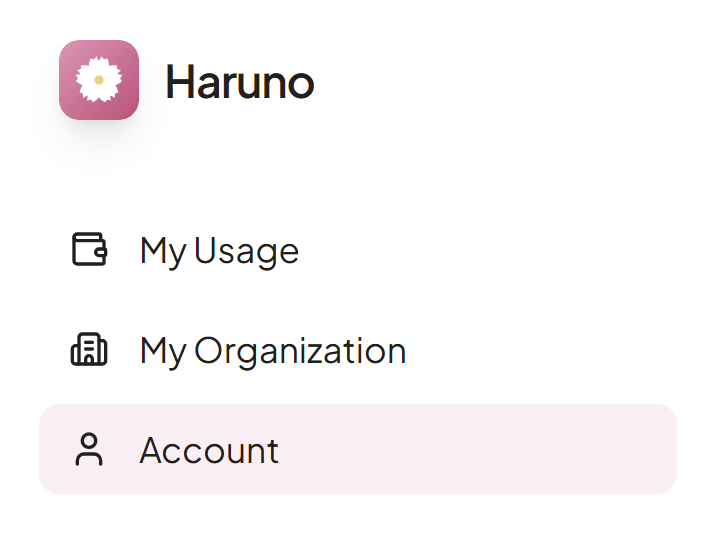
- Click Account in the sidebar. On a phone it sits in a bar across the top.
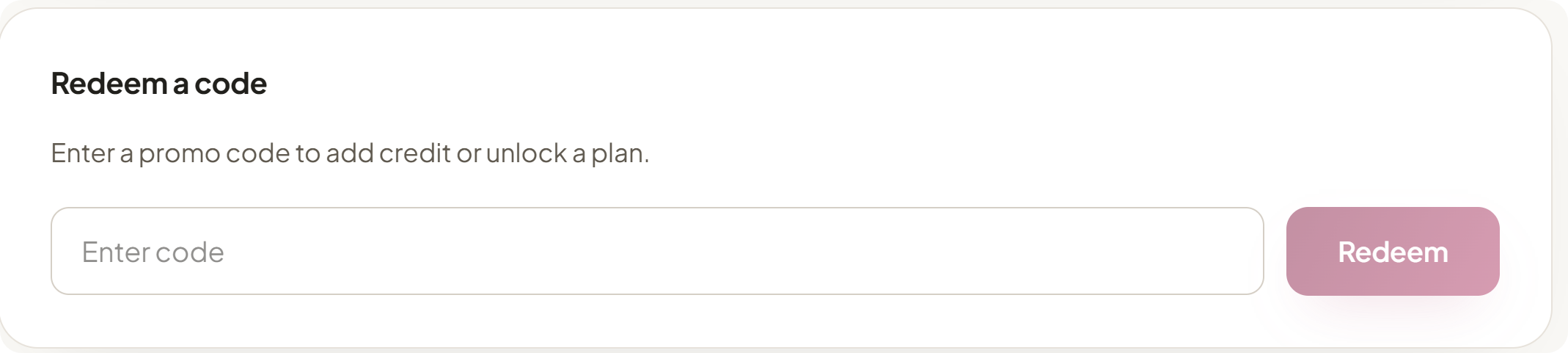
- Scroll down to the Redeem a code card, type or paste the code into Enter code and click Redeem. Case does not matter.
- Wait for “Code redeemed — your plan is updated.” It appears for both kinds of code; after a credit code the credit shows on Usage, not in the plan name.
If you were sent a link
A link such as https://dev.haruno.inferara.ru/dashboard/redeem?promo=YOUR-CODE fills in the code, but you still have to click Redeem. If you are not signed in, the dashboard has you sign in (with no account yet, Continue with Google creates one), then brings you back.
Check that it worked
Open Usage on the account dashboard. If it was already open, reload it or click Refresh usage.
| Where | After a credit code | After a plan code |
|---|---|---|
| Dashboard ▸ Usage | A Bonus credit left meter appears or refills, starting full. | The line under Usage names the new plan; the 5-hour and weekly meters follow its limits, or go away if it has none. |
| Dashboard ▸ Account ▸ Profile | No change. | The Plan badge shows the new plan. |
| Mac: Settings ▸ General ▸ Account, and the account row | No change. The app never shows bonus credit. | The new name after you reopen Haruno or sign in again. The allowance applies before that. |
The dashboard does not list redeemed codes or show what a code grants or when a plan code ends, and it shows credit only as a percentage left. Ask whoever sent the code. What each meter and caption means: Reading the meters.
Use it in Haruno on your Mac
Every Mac signed in to the account can use the new credit or plan within seconds, with nothing to enter. Not signed in yet? See Sign in.
When the Plan line catches up
Haruno reads your plan's name when it opens and when you sign in. After a plan code, quit with ⌘Q and reopen, or sign out and back in, to see the new name under your email in Settings ▸ General ▸ Account and in the account row. The new allowance does not wait for this.
If a message was refused before you redeemed
Send it again: a code pays for your next message, not one already refused. If a message sent in the first seconds after redeeming is refused, wait a moment and resend. A code fixes “Usage limit reached. Add credit or change your plan in the Haruno dashboard.”, also on a new account with no plan yet, but not “Too many requests at once…” or “Payment required…” (see Troubleshooting).
On Windows
In the Windows app there is nothing to press: it checks your license about every minute, so a code counts soon after you redeem it (see Check your account and license).
How credit and plan codes behave
Your plan's allowance, a periodic budget that lapses, pays first; then bonus credit, a prepaid balance that carries forward until used; then your organization's shared pool, if you have one (see Who pays for each request).
Credit codes
Credit goes to your own account, not your organization's pool, and adds to any plan, including an organization seat. It stays through plan changes, including a plan code's start and end, and through leaving an organization.
Plan codes
- A plan code adds no balance, and nothing checks that its plan is larger than yours: if you already have a plan, ask which plan the code grants.
- When its days end, your account returns by itself, shortly after, to its previous plan, or to your organization's plan if you took a seat meanwhile. An account that had no plan has none again.
If a code is refused
The dashboard shows the reason in red under the field, and nothing changes on your account. Most of these messages are in English whatever the dashboard's language; “Something went wrong on our side…” follows it.
| What you see | What it means and what to do |
|---|---|
| “Invalid promo code” | No such code, or it has expired or been switched off. Check each character, open the link you were sent, or ask for a new code. |
| “You have already redeemed this code” | It is already applied to this account. |
| “This code has been fully redeemed” | Out of redemptions. Ask for a new code. |
| “Cannot redeem a plan code while a paid subscription is active” | Your account has a card subscription bought on the account dashboard (a plan our team set up does not cause this). Ask for a credit code; it works on any plan. |
| “Cannot redeem a plan code while your organization manages your plan” | Ask for a credit code, or ask your organization's admin. |
| “Your session has expired. Please sign in again.” | Reload the page, sign in, and redeem again. |
| “Failed to fetch”, “Load failed” or another browser connection message | Check your connection and retry. If it persists, write to info@inferara.com. |
| “Something went wrong on our side. Please try again in a moment.” | Try again in a moment. If the first try went through, you see “You have already redeemed this code”. |
Rules and limits
Each account can redeem a given code once. Several accounts can redeem the same code, up to its total limit if one is set; credit is not shared between them.
| Rule | Detail |
|---|---|
| Deleting your account | Deleting your Haruno account on the dashboard removes it at once; credit or a plan on it can no longer be used. |
| Code format | Letters, digits and dashes, up to 64 characters; case and surrounding spaces are ignored. Codes we generate look like ABCD-EFGH-JKLM and never contain 0, O, 1 or I; our team can also choose a word as a code. |
Only our team issues codes. To ask for one, or for extra credit, see extras in Pricing and billing or write to info@inferara.com.